Creating the Ingress
The AWS Load Balancer Controller is included with Amazon EKS Auto Mode and runs in the control plane. It will automatically provision AWS load balancers when you create Ingress resources.
Currently there are no Ingress resources in our cluster, which you can check with the following command:
No resources found in ui namespace.
First, we need to configure an IngressClass and IngressClassParams:
apiVersion: networking.k8s.io/v1
kind: IngressClass
metadata:
  name: eks-auto-alb
  annotations:
    ingressclass.kubernetes.io/is-default-class: "true"
spec:
  controller: eks.amazonaws.com/alb
  parameters:
    apiGroup: eks.amazonaws.com
    kind: IngressClassParams
    name: eks-auto-alb
---
apiVersion: eks.amazonaws.com/v1
kind: IngressClassParams
metadata:
  name: eks-auto-alb
spec:
  scheme: internet-facing
The controller field must be set to eks.amazonaws.com/alb to target the Auto Mode ALB capability
The parameters section references an IngressClassParams resource with apiGroup: eks.amazonaws.com
The IngressClassParams defines AWS-specific configuration like the load balancer scheme and target type
Using this IngressClass we will configure an Ingress:
apiVersion: networking.k8s.io/v1
kind: Ingress
metadata:
  name: ui-auto
  namespace: ui
  annotations:
    alb.ingress.kubernetes.io/scheme: internet-facing
    alb.ingress.kubernetes.io/target-type: ip
spec:
  ingressClassName: eks-auto-alb
  rules:
    - http:
        paths:
          - path: /
            pathType: Prefix
            backend:
              service:
                name: ui
                port:
                  number: 80
Use an Ingress kind
The ingressClassName references our Auto Mode IngressClass
The rules section routes all HTTP requests where the path starts with / to the Kubernetes service called ui on port 80
With EKS Auto Mode, ALB configuration via annotations is not supported. Configuration must be done in the IngressClassParams.
Let's apply those configurations:
Let's inspect the Ingress object created:
NAME CLASS HOSTS ADDRESS PORTS AGE
ui-auto eks-auto-alb * k8s-ui-uiauto-6cd0ef095e-78768930.us-west-2.elb.amazonaws.com 80 5s
The ALB will take several minutes to provision and register its targets so take some time to take a closer look at the ALB provisioned for this Ingress to see how it's configured:
[
{"LoadBalancerArn": "arn:aws:elasticloadbalancing:us-west-2:1234567890:loadbalancer/app/k8s-ui-uiauto-cb8129ddff/f62a7bc03db28e7c",
"DNSName": "k8s-ui-ui-cb8129ddff-1888909706.us-west-2.elb.amazonaws.com",
"CanonicalHostedZoneId": "Z1H1FL5HABSF5",
"CreatedTime": "2022-09-30T03:40:00.950000+00:00",
"LoadBalancerName": "k8s-ui-ui-cb8129ddff",
"Scheme": "internet-facing",
"VpcId": "vpc-0851f873025a2ece5",
"State": {"Code": "active"
},
"Type": "application",
"AvailabilityZones": [
{"ZoneName": "us-west-2b",
"SubnetId": "subnet-00415f527bbbd999b",
"LoadBalancerAddresses": []
},
{"ZoneName": "us-west-2a",
"SubnetId": "subnet-0264d4b9985bd8691",
"LoadBalancerAddresses": []
},
{"ZoneName": "us-west-2c",
"SubnetId": "subnet-05cda6deed7f3da65",
"LoadBalancerAddresses": []
}
],
"SecurityGroups": [
"sg-0f8e704ee37512eb2",
"sg-02af06ec605ef8777"
],
"IpAddressType": "ipv4"
}
]
What does this tell us?
- The ALB is accessible over the public internet
- It uses the public subnets in our VPC
Inspect the targets in the target group that was created by the controller:
{"TargetHealthDescriptions": [
{ "Target": {"Id": "10.42.180.183",
"Port": 8080,
"AvailabilityZone": "us-west-2c"
},
"HealthCheckPort": "8080",
"TargetHealth": {"State": "healthy"
}
}
]
}
Since we specified using IP mode in our Ingress object, the target is registered using the IP address of the ui pod and the port on which it serves traffic.
You can also inspect the ALB and its target groups in the console by clicking this link:
 Open EC2 console
If you face issues opening the console using this button, you might not have an active session for the AWS console. To fix this, please go to the home page of the workshop and click on the link named Open AWS console under AWS account access section of the left navigation menu.
Get the URL from the Ingress resource:
http://k8s-ui-uiauto-cb8129ddff-1888909706.us-west-2.elb.amazonaws.com
To wait until the load balancer has finished provisioning you can run this command:
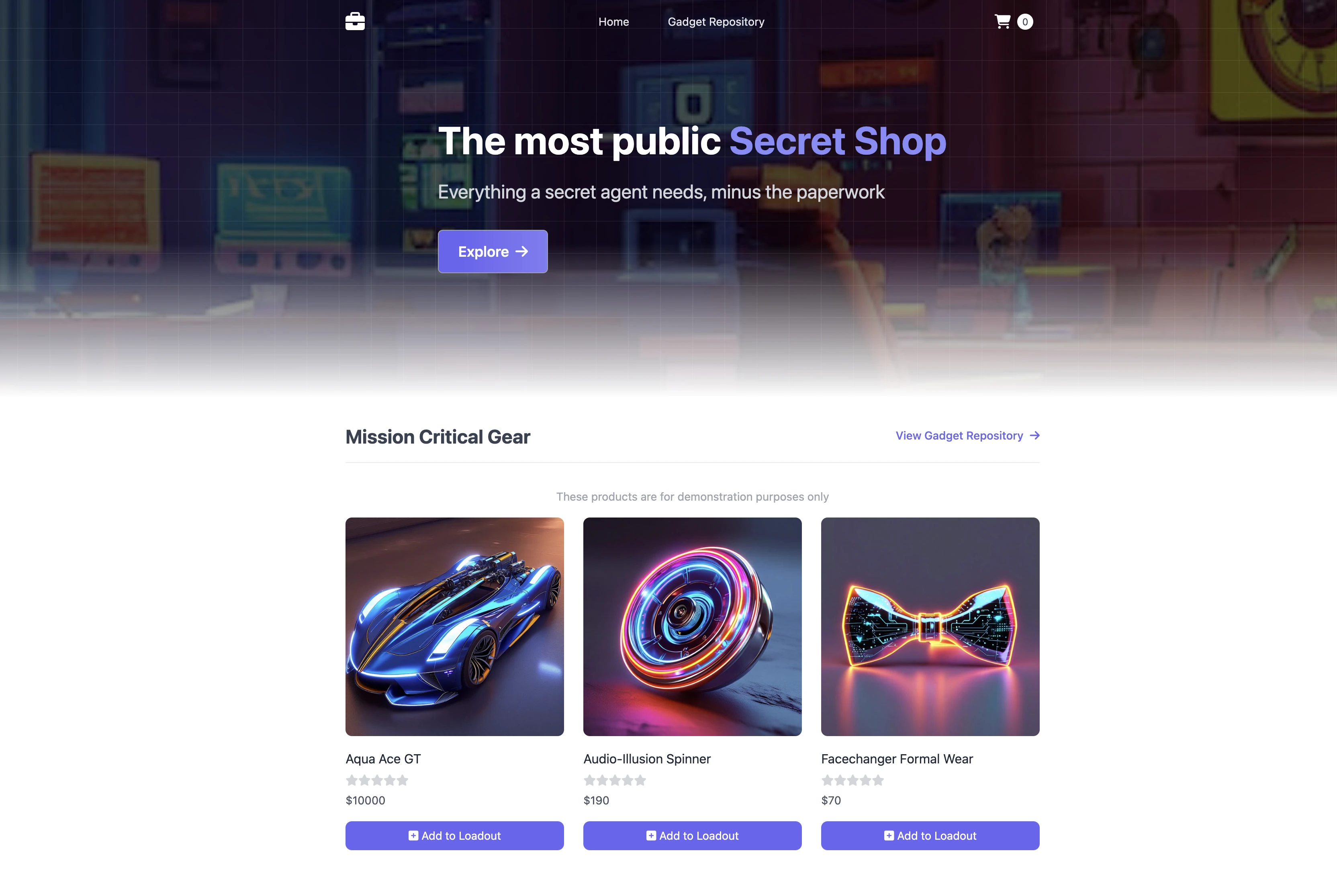
And access it in your web browser. You will see the UI from the web store displayed and will be able to navigate around the site as a user.